API specification
Version 6.17.6
This document details all the functions for integrating with Street Manager via the latest version of the API. See the ‘Versions and Changes’ section for more details on previous versions. The documentation for the stable version of the API is available here.
Table of contents
- Introduction
- Swagger Documentation
- Environments
- Connecting to the API services
- Timing
- Technical Overview
- Versioning and Release Management
- Testing
- Security
- Sequencing
- Access and permissions
- Resource Guide
- Versions and Changes
Introduction
This is the API guidance documentation for Street Manager, intended as a guide for developers integrating their systems to submit and retrieve information about street works. It is intended as a technical guide to be used with the API definition documentation and not a business change guide.
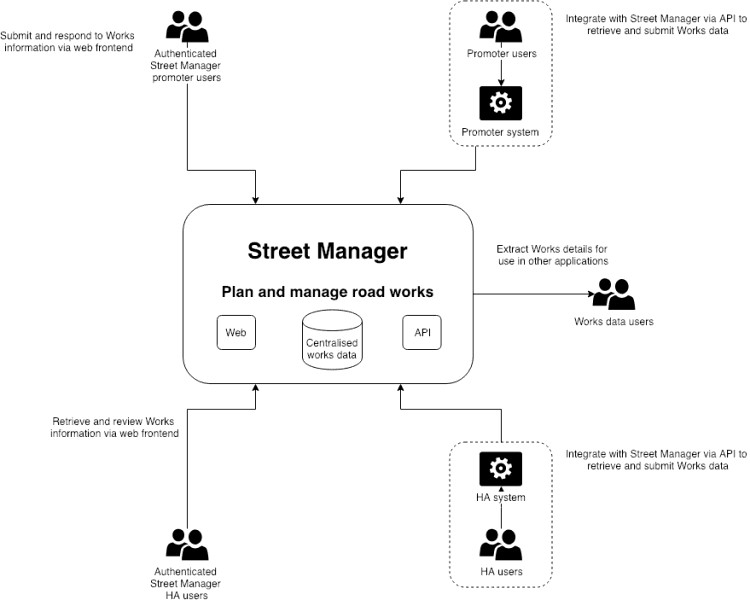
The Street Manager APIs are RESTful APIs to read/write data to the centralised Street Manager system following GDS guidelines, not a peer to peer solution.
References
For supplemental details, please see the following documents:
- Business rules, for details on Street Managers business processes and logic
- Registration, for details on how to start using Street Manager with-in your organisation
Swagger Documentation
The services APIs are documented and defined using OpenAPI Specification Version 2 (Swagger). This allows developers to get the full technical detail for the API endpoints, including Request/Response object definitions. The Swagger JSON includes comments for field validation rules and references to the business rules. You can use the files to generate interface code for your chosen language.
The Swagger JSON files for each API are available below:
- Work API JSON
- Reporting API JSON
- Street Lookup API JSON
- GeoJSON API JSON
- Party API JSON
- Data Export API JSON
- Event API JSON
- Sampling API JSON
- Worklist API JSON
You can see the Swagger definitions rendered as HTML on the SANDBOX environment:
- Work API
- Reporting API
- Street Lookup API
- GeoJSON API
- Party API
- Data Export API
- Event API
- Sampling API
- Worklist API
Please be aware of the following:
If you attempt to validate the above swagger files using the online tool https://editor.swagger.io or swagger-cli, you may see schema errors. Please note we are aware of this issue and it will not stop you from being able to generate mock server/clients. We aim to fix this in a future version.
Swagger UI does not display all description text for enumerations and child elements, instead check each of the swagger.json files above for full description text.
In the Work API several request definitions contain internal_user_identifier and internal_user_name. Please see Works API - Delegated Users section for details.
Environments
The Street Manager service provides two separate isolated application service environments. Both of these environments contains a full stack deployment of Street Manager and are designated for specific purposes, as outlined below.
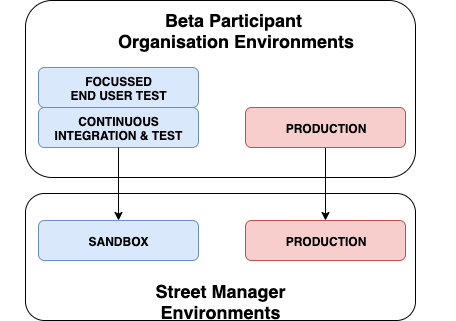
SANDBOX environment
API URL: https://api.sandbox.manage-roadworks.service.gov.uk
- SANDBOX environment is primarily intended as an integration testing environment for API integrators and an initial orientation environment for organisations intending to use the Street Manager web frontend.
- Each Public Beta participant organisation will be provided with credentials as part of the initial onboarding process. User credentials can be valid for either the Street Manager web frontend, or the Street Manager API interfaces - not both at the same time. In order to have existing credentials reconfigured for API access, please contact the Street Manager service desk.
- Organisations who are not a recognised Street Works Authority (do not have a SWA code, Contractor/Vendors etc.) may test using accounts for associated Street Works Authority organisations.
- Organisations intending to use only the Street Manager web frontend can leverage SANDBOX environment to test end-to-end permit journeys and familiarise their staff with the service.
- API integration developers can leverage the SANDBOX environment to access the latest Swagger documentation for the available API endpoints, as well as test their API clients against the Street Manager API services from their CI integration environment.
- Organisations are permitted to leverage SANDBOX for additional assurance activities such as focussed end-user testing, however no form of performance testing is permitted against this environment. Organisations who wish to carry out performance testing must contact the Street Manager project team directly in order to discuss options.
- SANDBOX is development-grade, therefore a) is subject to higher-velocity changes and releases; b) is not guaranteed to be highly-available nor highly-performant; c) may be subject to occasional resets of the underlying databases.
- Organisations and their users of Street Manager must agree not to submit sensitive nor personally identifiable data into the SANDBOX environment under any circumstances – only use of ‘dummy’ data is permitted.
PRODUCTION environment
API URL: https://api.manage-roadworks.service.gov.uk
- The PRODUCTION environment is for LIVE use and LIVE data only – neither functional nor non-functional testing is permitted against the live environment.
- Once an organisation has reached production-readiness – and have aligned with their local area ecosystem partners in that production-readiness – the organisations must engage with the Street Manager team to inform them of their production readiness. At this stage the team will work with the organisation to facilitate a transition into the PRODUCTION environment.
- In some cases, local area ecosystem alignment may not be possible within reasonable time frames due to external factors. In these cases, dual-keying may be necessary between the organisation, their existing EToN system, and the Street Manager Service.
Connecting to the API services
In order to connect to the Street Manager environments, your API client must be configured to connect to an environment-specific API URL via HTTPS.
It is important to note that the hostname within the URL contains a DNS CNAME. Due to the nature of Street Manager’s highly-available cloud-native design, the underlying IP addresses resolved from this CNAME are subject to change frequently and without notice.
Therefore, if your IT department restrict outbound internet access from your API client to the Street Manager service via a perimeter firewall or some other means, it is important that access to Street Manager is whitelisted on the basis of the DNS CNAME and not the transient underlying IP addresses.
Timing
All Street Manager environments use standard NTP Pool servers to synchronise their system clocks, ensuring they keep accurate and consistent time. Street Manager system time is UTC. Please provide accurate time zone information in API requests, not doing so can cause errors in some time based calculations such as works duration. To learn more about how Street Manager uses time and defines rules like working day, see the Business rules.
Technical Overview
Available APIs
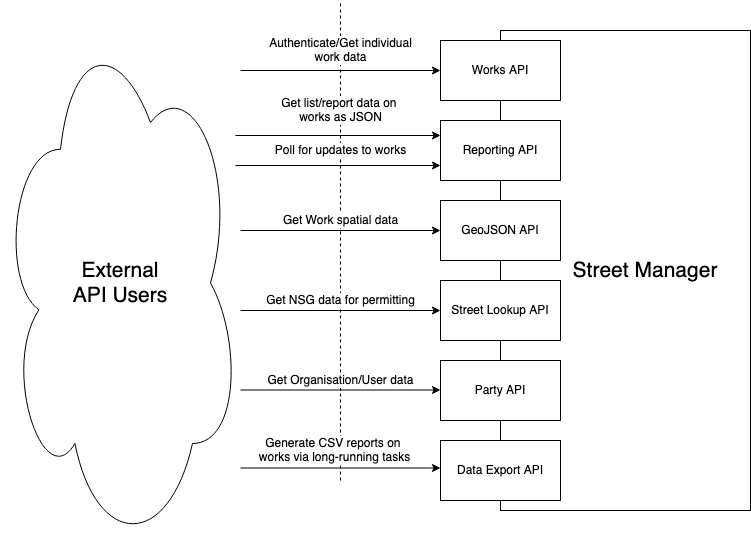
Street Manager exposes a number of APIs to allow external applications to retrieve and submit data.
Work API
The Street Manager Work API allows promoters and highway authority users to carry out a number of key workflows relevant to their organization and role. We will cover each in detail but at a high level they are:
Promoter workflows
- Submit permit application
- Submit forward plan
- Carry out a work
- Create reinstatement
- Action an FPN
- Add comments to a works record
- Submit a permit alteration (change-request, work extension)
Highway Authority workflows
- Assess permit application
- Issue an inspection
- Schedule reinspections
- Issue an FPN
- Submit event and highway license activities
- Add comments to a works record
- Issue a Section 81
- Generate Sample Inspections
In order to ensure a user has the appropriate permissions to carry out the above workflows they must authenticate to the API and acquire a JWT to be used as part of their request.
Street Lookup API
The Street Manager Street Lookup API allows querying of NSG and ASD data based on location and USRN. This function is only available as part of submitting a permit for a work. See the resource guide for details.
GeoJson API
The Street Manager GeoJson API exposes works and events spatial data to authenticated users for use with mapping queries. This API returns data in the form of GeoJSON using BNG (British National Grid EPSG:27700) as the Coordinate Reference System, as per Street Works industry standard. See the resource guide for details.
Data Export API
Street Manager supports an API for Open Data users. The Data Export API allows non street works authority users, such as Mobile Application developers, to retrieve information about works. It also allows users of Street Manager to extract data within their organisation from the service in CSV format. See Open Data - Hourly Export and the Resource Guide for details.
Reporting API
The Reporting API allows promoters and highway authority users to carry out a number of data analysis and reporting workflows, allowing them to retrieve data with configurable filtering, sorting and paging. This is the backbone of our dashboard and list functionality. This API should be used as a primary API to retrieve large volumes of data about your works.
Getting data from Street Manager
External systems integrating with Street Manager need to retrieve data from the service to give their users the most up-to-date view on what is going on with their works. Street Manager has a number of ways which you can extract data from the service.
Individual work data
The Work API provides endpoints which give the full detail available for individual Works and Permits. Use these endpoints to retrieve details such as timings, comments, history and changes.
Reporting
You can use the Data Export API to extract data from the service in CSV format. These endpoints allow you to extract most Work information efficiently for your organisation.
Continuous Polling
The Event API exposes a /works/updates endpoint for polling. See the resource guide for full information.
Notifications
Street Manager offers a Notification service which will send Push notifications to organisations for updates to their Works to subscribed systems. Organisations who wish to receive notifications need to expose an HTTPS endpoint capable of receiving POST requests from the Notification service containing the update event data as JSON.
You can find out more about Notifications, including how to access them, on the Open Data Overview page.
Notifications cannot offer guaranteed delivery (network issues, service downtime etc.) so to reconcile for missed Notifications you can use the Polling API endpoint to validate you have received notifications for all updated works.
Contractors
Contractors can use the Data Export API to extract data from the service in CSV format. These endpoints allow you to extract most Work information efficiently for the organisation you are working on behalf of. swa_code parameters are available on the endpoints which can be used by contractors to provide the SWA code of the promoter they are working on behalf of. Additionally, contractors can carry out promoter workflows via the Work API.
Open Data - Hourly Export
Street Manager currently maintains an hourly scheduled job for data exporting. This retrieves activities across all organisations that have been added, changed, or deleted in the past hour, which is then stored in CSV format. This export can be retrieved using the Data Export API. This scheduled job is planned to be decommissioned in favour of the Open Data event notifications described above, however.
For example, a CSV file named Activity_data_export_2020-01-01_13-00.csv will contain activities across all organisations that have been added, changed, or deleted between 2020-01-01T12:00:00.000Z and 2020-01-01T12:59:59.999Z.
Note: The timing in the CSV file names are in British Summer Time (BST), similar to the async data extraction CSV files. So during BST, a CSV file named Activity_data_export_2020-04-15_13-00.csv will contain activities across all organisations that have been added, changed, or deleted between 2020-04-15T11:00:00.000Z (2020-04-15T12:00:00.000+0100) and 2020-04-15T11:59:59.999Z (2020-04-15T12:59:59.999+0100).
Versioning and Release Management
During Public Beta and beyond, the Street Manager services will remain under continual active development. Therefore, a process must be established which allows low-friction development to continue at pace, whilst providing the option for web frontend users and API integrators to focus on a higher-stability version of the services.
This section aims to describe the approach taken by the Street Manager team in order to meet both of those requirements. The approach is based upon existing GDS best practices and will undergo continual refinement over time, based on feedback from the consumers of the service environments as well as observations by the Street Manager project team.
API Versioning Approach
The Street Manager API services are versioned via the URL path, for example api.sandbox.domain.com/v1/work/.../ versus api.sandbox.domain.com/latest/work/.../. The UI will point at the latest version of the code base, while API users will be able to use v1 or latest.
API Versions
- V1 (decommissioned on 3rd May 2021)
- V2 (decommissioned on 16th May 2022)
- V3 (decommissioned on 24th July 2023)
- V4 (decommissioned on 17th February 2025)
- V5 (stable)
- V6 (under active development)
Release Management
Minor version updates will be released to all available versions of Street Manager APIs every two weeks - these updates may include existing feature enhancements, entirely new feature additions, as well as issue hot fixes. Although regular releases will continue throughout Public Beta, the Street Manager development team will strive to minimise the number of breaking changes to stable versions where possible.
It should however be noted that during Public Beta development, there remains the potential that breaking changes may occasionally be required in order to release corrective hot fixes deemed to be service critical. In such situations, the project team will notify potentially affected participant organistations in advance of the release and provide support with a view to minimising disruption.
After an API version is deprecated this will no longer be supported or deployed. This will be communicated in advance to ensure ample notice for integrators to migrate to the new stable version.
The following are examples of what we consider to be breaking and non-breaking changes.
What is a breaking change
- Adding new mandatory field to existing endpoint request object
- Removing/renaming enum value for field in existing endpoint request object
- Adding/renaming enum value for field in existing endpoint response object
- Removing/renaming existing field in endpoint response object
- Adding new required endpoint to use an existing flow (e.g. submitting a permit)
What is a non-breaking change
- Adding a new optional field to existing endpoint request object
- Adding new enum values for field in existing endpoint request object
- Adding new data to response objects (accepting risk that this breaks some formal contract JSON deserialisers)
- Adding a new endpoint to support new functionality or an enhancement to existing functionality
- Updating values in non-enumerable fields
Testing
Environments and usage
See the Environments section for details on the environments. If you require non-functional performance or security testing please contact Street Manager support to agree scope, volumes and scheduling beforehand, as this may have an impact on other users and each environment has specific rate limiting and protective controls which may invalidate your tests.
Recommended testing strategy
Our recommendation for organisations who want to start testing Street Manager is to get access to the SANDBOX environment and test in collaborative groups that reflect their normal operational area and actions. This allows more realistic test scenarios and will help better understand how other organisations plan to use Street Manager.
This will not always be possible and organisations may need to test using accounts for other organisations in order to test certain scenarios independently (e.g. a Utility company using a HA account to assess a permit they submitted). To enable this we will allow organisations to request accounts for other organisations with some restrictions to prevent conflicts in testing between organisations test data. See below for recommendations per type of organisation for independent testing.
-
Highway Authorities
Use self permitting, submitting permits as a HA Planner and assessing permits under your own area.
-
Promoters
Request an HA account for a HA which you normally interact with and submit permits using a specific Workstream which identifies your test permits from the HA's own test data. This allows the HA to differentiate between your test data and their own. Use your HA account to respond to your Workstream permits and test your scenarios. You will need permission from the HA to do this and must liaise with the HA to ensure your testing does not interfere with their testing.
If you can not find an appropriate HA to test with you can request a HA test account for Isles of Scilly HA ("COUNCIL OF THE ISLES OF SCILLY", 835, HJ) via the service desk. This will allow you to independently test scenarios for a limited set of streets.
-
Contractors
Request your contractor organisation to be associated with a specific Promoter (or HA acting as Promoter for self permitting) in SANDBOX. Arrange with Promoter to create a Workstream for your test permits. If you need an HA account to assess your test permits you may request an HA account (same as a Promoter, see above).
If your users operate directly as users for a Promoter, managed by their organisation directly and not as contractors users working for many organisations under single account, you may request users for that Promoter and test under Workstreams based on your normal actions for the Promoter and should liaise with the Promoter during testing.
-
Vendors/Non-SWA organisations
If you are not testing for a specific SWA Promoter/HA (e.g. developing API integration for your product) you may request accounts for a Promoter/HA organisation (with their permission) and test using specific Workstreams to isolate your test data from their own.
Reporting issues
In order to correct issues and bugs found in Street Manager we require specific information so we can trace and attempt to reproduce errors.
Details will be provided to you at onboarding regarding how to report issues, the format and information required.
Generating test client and server stubs
It is possible to generate test clients and servers using the available API documentation (Swagger JSON) which can be retrieved directly from the exposed APIs in SANDBOX environments. This allows isolated testing of your integration without dependency on test environments and can speed up development.
Swagger-codegen supports generating client and server stubs for a variety of languages, see here for details. Below is an example of generating Java client and server stubs using the Swagger-codegen utility.
Requires
- Java (tested with openjdk version "11.0.1" 2018-10-16)
- Maven for build
- Swagger Codegen
Client
Generated with command:
swagger-codegen generate -i swagger.json -l java -o ./streetmanager-apiclient-java
The generated code for the template had a number of errors which required manual corrections.
Corrections:
- pom.xml - updated
1.7 to1.8 to support annotations - pom.xml - added dependency javax.annotation to replace deprecated class
- Find/Replace body@ApiParam to body,@ApiParam due to template error on generated clients
- Find/Replace new BigDecimal() to new BigDecimal(0)due to template error on generated tests
To build:
mvn package
Server
Generated with command:
swagger-codegen generate -i swagger.json -l spring -o ./streetmanager-apistub-java-spring
The generated code for the template had a number of errors which required manual corrections.
Corrections:
- pom.xml - updated
1.7 to1.8 to support annotations - pom.xml - added dependencies for javax.xml.bind to replace deprecated class
- Find/Replace body\@ApiParam to body,\@ApiParam due to template error on generated controllers
- Find/Replace new BigDecimal() to new BigDecimal(0)due to template error on generated tests To run:
mvn package
java -jar target/swagger-spring-1.0.0.jar --server.port=8080
Security
HTTPS
All Street Manager web and API interfaces are secured using Transport Layer Security (TLS) v1.2 certificates issued by Amazon Web Services. These certificates are signed by the ‘Amazon Root CA 1’ certificate as listed in the ‘Certification Authorities’ section of the AWS Chain of Trust document.
When sending requests to the Street Manager APIs the URL must start with https://. Requests sent with http:// will result in an error.
Authentication and Authorisation
All resource endpoints in the API, with the exception of authentication and status, require a JWT to be passed in the 'token' header of the request. The JWT contains information about the user and allows them to access routes, services, and resources that are permitted with that token. Without it the request will be met with a 401 error response.
A systemToken API key is also available on the Party API, this token is for internal use only and is not required for any exposed endpoint.
User accounts and permissions
External systems integrating with Street Manager should use specific credentials setup for API users. This is to allow Street Manager to differentiate between Web UI user accounts and API users. User accounts are assigned specific roles, such as planner and admin.
Each user can perform read operations to every resource, however write operations are restricted based on a user’s role and the organisation they are associated with.
If the organisation the user belongs to is suspended or disabled they will be unable to log in. If they are logged in before the organisation is suspended or disabled then they will receive 401 error responses on read/write operations and will be prevented from logging again. Contractors working on behalf of suspended or disabled organisations will receive 401 error responses on read/write operations for that organisation.
If a user has not logged into Street Manager in more than 6 months their account will be disabled. If a user has been disabled they will be unable to log in and will require an admin to re-invite them to Street Manager.
Note: Currently systems who need to act as users associated with multiple organisations, i.e. submitting permits for multiple utility companies, need to use separate user accounts for each organisation.
The table below shows the current permissions per endpoint.
Work API
| Endpoint | Roles | Organisation Member* |
|---|---|---|
POST /authenticate |
None | Not Required |
POST /files |
Planner, Contractor & Highway Authority | Required |
DELETE /files/{id} |
Planner, Contractor & Highway Authority | Required |
POST /works |
Planner & Contractor | Required |
PUT /works/* |
Planner & Contractor | Required |
POST /works/{workReferenceNumber}/comments |
Planner, Contractor & Highway Authority | Required |
PUT /works/{workReferenceNumber}/comments/{commentReferenceNumber}/read |
Planner, Contractor & Highway Authority | Required |
POST /works/{workReferenceNumber}/fixed-penalty-notices |
Highway Authority | Required |
PUT /works/{workReferenceNumber}/fixed-penalty-notices/{fpnReferenceNumber}/status |
Planner, Contractor & Highway Authority | Required |
DELETE /works/{workReferenceNumber}/fixed-penalty-notices/{FpnReferenceNumber} |
Highway Authority | Required |
POST /works/{workReferenceNumber}/inspections |
Highway Authority | Required |
PUT /works/{workReferenceNumber}/inspections/{inspectionReferenceNumber}/withdraw |
Highway Authority | Required |
DELETE /works/{workReferenceNumber}/inspections/{inspectionReferenceNumber} |
Highway Authority | Required |
POST /works/{workReferenceNumber}/scheduled-inspections |
Highway Authority | Required |
DELETE /works/{workReferenceNumber}/scheduled-inspections |
Highway Authority | Required |
POST /works/{workReferenceNumber}/permits/{permitReferenceNumber}/alterations |
Planner, Contractor & Highway Authority | Required |
PUT /works/{workReferenceNumber}/permits/{permitReferenceNumber}/alterations |
Highway Authority | Required |
POST /works/{workReferenceNumber}/permits/{permitReferenceNumber}/alterations/impose |
Highway Authority | Required |
POST /works/{workReferenceNumber}/permits/{permitReferenceNumber}/status |
Planner, Contractor & Highway Authority | Required |
POST /works/{workReferenceNumber}/sites/{siteNumber}/reinstatements |
Planner & Contractor | Required |
POST /activity |
Highway Authority | Required |
GET /activity/{activityReferenceNumber} |
Planner, Contractor & Highway Authority | Not Required |
PUT /activity/{activityReferenceNumber}/cancel |
Highway Authority | Required |
POST /forward-plans |
Planner & Contractor | Required |
GET /works/{workReferenceNumber}/forward-plans/{forwardPlanReferenceNumber} |
Planner & Contractor | Required |
PUT /works/{workReferenceNumber}/forward-plans/{forwardPlanReferenceNumber} |
Planner & Contractor | Required |
PUT /works/{workReferenceNumber}/forward-plans/{forwardPlanReferenceNumber}/cancel |
Planner & Contractor | Required |
POST /historic-works/fixed-penalty-notices |
Highway Authority | Required |
POST /historic-works/inspections |
Highway Authority | Required |
POST /non-notifiable-works/sites |
Planner & Contractor | Required |
POST /section-81-works/section-81s |
Highway Authority | Required |
GET /works/{workReferenceNumber}/section-81s/{section81ReferenceNumber} |
Planner, Contractor & Highway Authority | Required |
PUT /works/{workReferenceNumber}/section-81s/{section81ReferenceNumber}/status |
Highway Authority | Required |
POST /works/{workReferenceNumber}/permits/{permitReferenceNumber}/link-section-81 |
Highway Authority | Required |
POST /works/{workReferenceNumber}/permits/{permitReferenceNumber}/unlink-section-81 |
Highway Authority | Required |
PUT /works/{workReferenceNumber}/section-81s/{section81ReferenceNumber}/reassign-section-81 |
Highway Authority | Required |
PUT /works/{workReferenceNumber}/permits/{permitReferenceNumber}/hs2_acknowledgement |
Highway Authority | Required |
POST /geographical-areas |
Admin (associated with a Highway Authority), Highway Authority | Required |
PUT /geographical-areas/{geographicalAreaReferenceNumber} |
Admin (associated with a Highway Authority), Highway Authority | Required |
POST /sample-inspection-targets |
Admin (associated with a Highway Authority), Highway Authority | Required |
GET /sample-inspection-targets/{sampleInspectionTargetReferenceNumber} |
Admin (associated with a Highway Authority), Highway Authority | Required |
DELETE /sample-inspection-targets/{sampleInspectionTargetReferenceNumber} |
Admin (associated with a Highway Authority), Highway Authority | Required |
PUT /sample-inspection-targets/{sampleInspectionTargetReferenceNumber} |
Admin (associated with a Highway Authority), Highway Authority | Required |
PUT /sample-inspection-targets/{sampleInspectionTargetReferenceNumber}/close |
Admin (associated with a Highway Authority), Highway Authority | Required |
POST /sample-inspection-targets/{sampleInspectionTargetReferenceNumber}/close |
Admin (associated with a Highway Authority), Highway Authority | Required |
POST /works/${workReferenceNumber}/section-74s |
Highway Authority | Required |
GET /works/{workReferenceNumber}/section-74s/{section74ReferenceNumber} |
Planner, Contractor & Highway Authority (StreetWorksAdmin optional and if included returns additional sensitive financial information) | Required |
PUT /works/{workReferenceNumber}/section-74s/{section74ReferenceNumber}/highway-authority-status |
Highway Authority | Required |
PUT /works/{workReferenceNumber}/section-74s/{section74ReferenceNumber}/promoter-status |
Planner or Contractor | Required |
PUT works/{workReferenceNumber}/permits/{permitReferenceNumber}/alterations/{permitAlterationReferenceNumber}/duration-challenge-review |
Planner or Contractor | Required |
PUT works/{workReferenceNumber}/permits/{permitReferenceNumber}/alterations/{permitAlterationReferenceNumber}/duration-challenge-non-acceptance-response |
Highway Authority | Required |
GET /works/{workReferenceNumber}/earliest-permit |
Planner, Contractor & Highway Authority | Not Required |
PUT works/{workReferenceNumber}/permits/{permitReferenceNumber}/duration-challenge-review |
Planner or Contractor | Required |
PUT works/{workReferenceNumber}/permits/{permitReferenceNumber}/duration-challenge-non-acceptance-response |
Highway Authority | Required |
POST /section-58s |
Highway Authority | Required |
GET /section-58s/{section58ReferenceNumber} |
Planner, Contractor & Highway Authority | Not Required |
PUT /section-58s/{section58ReferenceNumber}/status |
Highway Authority | Required |
Reporting API
| Endpoint | Roles | Organisation Member* |
|---|---|---|
GET /* |
Planner, Contractor & Highway Authority | Not Required |
GET /sample-inspections |
Highway Authority | Not Required |
GET /sample-inspection-targets |
Admin & Highway Authority | Not Required |
Street Lookup API
| Endpoint | Roles | Organisation Member* |
|---|---|---|
GET /* |
Planner, Contractor & Highway Authority | Not Required |
Geojson API
| Endpoint | Roles | Organisation Member* |
|---|---|---|
GET /* |
Planner, Contractor & Highway Authority | Not Required |
Party API
| Endpoint | Roles | Organisation Member* |
|---|---|---|
GET /* |
Planner, Contractor, Highway Authority & Admin | Not Required |
POST /logout |
Planner, Contractor, Highway Authority & Admin | Not Required |
POST /refresh |
Planner, Contractor, Highway Authority & Admin | Not Required |
GET /organisations/{organisationReference} |
Planner, Contractor, Highway Authority & Admin | Not Required |
GET /organisations/{organisationReference}/workstreams |
Planner, Contractor & Admin | Required |
POST /organisations/{organisationReference}/workstreams |
Planner & Admin | Required |
GET /organisations/{organisationReference}/workstreams/{workstreamId}
|
Planner, Contractor, Highway Authority & Admin | Not Required |
PUT /organisations/{organisationReference}/workstreams/{workstreamPrefix}
|
Planner & Admin | Required |
GET /users/{email} |
Planner, Contractor & Admin | Not Required |
Data Export API
| Endpoint | Roles | Organisation Member* |
|---|---|---|
POST /*/csv |
Planner, Contractor & Highway Authority | Not Required |
GET /csv/{csvId} |
Planner, Contractor & Highway Authority | Not Required |
* An Organisation Member is a user with a SWA code matching the permit’s highway_authority_swa_code or promoter_swa_code. This is enforced in addition to the user’s role.
JWT
Json Web Token (JWT) is an open standard for exchanging information securely. The entities of Street Manager exchange information using JWTs and resources of the Street Manager API require that a JWT ID token be provided as part of the request.
The JWT is validated per service per request. Every service exposed by street manager will attempt to validate the JWT as part of its authentication and authorisation function.
The ID token expires 1 hour after it was generated, if an expired JWT is used in a request, an error with the HTTP status 401 will be returned. In this scenario a new token will need to be generated using the /party/refresh endpoint by supplying a Refresh token.
To invalidate all JWT tokens associated with a user, the Access token should be provided to the /party/logout endpoint.
Resource
POST /authenticate
The authenticate endpoint takes a case sensitive username (email address) and password, returning JWT ID, Access and Refresh tokens if successful. The JWT ID and Access tokens are valid for one hour, meanwhile the Refresh token is valid for 1 day. Once the ID token has been acquired it can be added to all
protected resource requests made via swagger using the Authorize button. Users who have had their account disabled will not be able to successfully authenticate. User accounts that have 5 failed login attempts within a 5 minute period will be locked, and will return a 423 status code when attempting to authenticate. Locked accounts are automatically unlocked after 5 minutes. If the organisation the user belongs to is suspended or disabled, then a 412 (Precondition Failed) error will be returned.
Example response:
{

  "idToken": "...",                // Token to be included in header for authentication

  "organisationReference": "XXXX", // SWA code or organisation reference for user

  "accessToken": "...",            // Token used to logout a user invalidating existing tokens

  "refreshToken": "..."            // Token used to re-authenticate a user, has long expiry time

}
When clicked this will present an input to enter the token. Once authorized then all protected resource requests made via swagger will have the token header set.
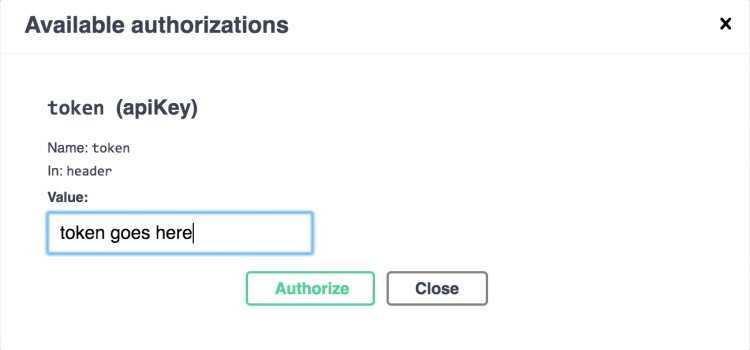
If authenticating for the first time with a temporary password, a 307 Temporary Redirect to authenticate/initial will be returned, which can be called with the same request body.
POST /authenticate/initial
After a user has been invited to the system by their organisation admin, they need to set a new password. This endpoint can be called with a new user’s email address and temporary password, and will return a token that should be provided to the Party API /set-password endpoint.
Error responses
It’s important to distinguish between authentication and authorization error responses as it will help narrow down where an issue is occurring.
Authentication Failed
{ "message": "Authentication failed", "error": { "status": 401 } }
Authentication fails when the token provided in the request is invalid. The ID token may have expired or the value set as the token was incorrect. You may also see this error when calling the POST /authenticate endpoint with invalid credentials i.e. wrong username or password.
Access Restricted
{ "message": "Access restricted", "error": { "status": 401 } }
The access restricted error indicates that although the token was valid, the user does not have permissions to perform the desired action. This error could arise for several reasons which will be listed in detail as part of the resource section, but common triggers would be attempting to manipulate entities (permit, reinstatement, inspection etc.) not related to your organization.
Rate limiting
To protect the system from denial of service attacks, repeated calls made in a short period of time from a single IP source will receive 429 status responses. If you are receiving 429 responses ensure you are not sending an excessive number of calls.
Sequencing
As detailed in the Technical Overview section, the Reporting API drives a large amount of data retrieval functionality whilst the Street Manager API drives a lot of key user workflows e.g. submit permit, assess permit, etc. These two APIs together form much of the common sequences a user is likely to perform.
Below is an example of sequence calls used to submit and respond to a permit application as well as how various actions affect the works lifecycle. These endpoints are all available as part of the street manager API and are discussed in more detail within the resource guide.
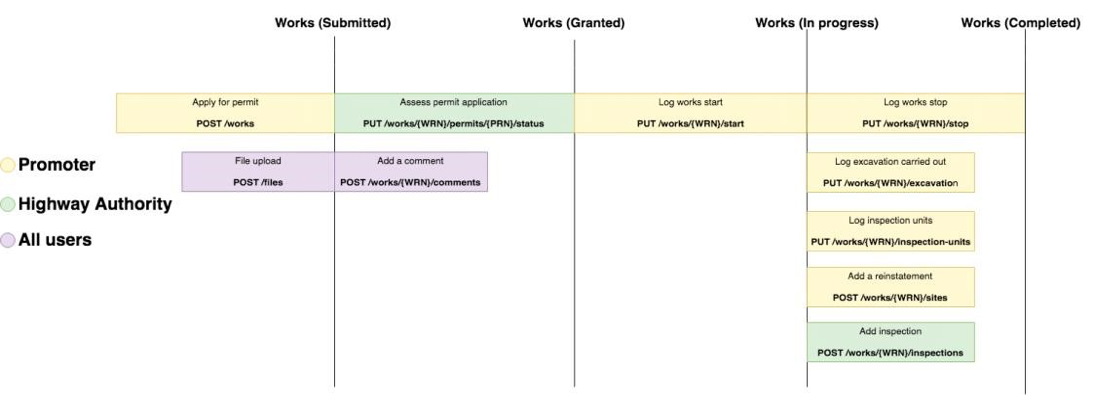
The following actions can be performed at any subsequent stage in the sequence from the stage they are available:
- File upload
- Add a comment
- Add reinstatement
- Add inspections
- Make alteration
Whilst the above focuses much on data manipulation via the Work API, here is an example of some data retrieval calls that may be performed alongside these actions via the Reporting API.
- Permits awaiting assessment:
GET /permits?status=submitted - Expiring interim reinstatements:
GET /reinstatements?status=interim&latest_reinstatements_only=true - Disputed FPNs:
GET /fixed-penalty-notices?status=disputed
Understanding the status of a work
As a permit progresses through the sequence above the permit status changes. Knowing the various statuses of a work and a permit allows you to filter lists of permits related to your organisation through the Reporting API.
The statuses of a work are:
- planned: The work has not yet started i.e. works start has not been logged
- in_progress: The work has been started but not yet completed i.e. works start has been logged but works stop has not
- completed: The work has been finished i.e. works stop has been logged
- cancelled: The active permit on the work has been cancelled
- unattributable: An unattributable work record
- historical: The work record was created from a historical inspection or FPN
- non_notifiable: The work record was created from a non notifiable reinstatement
- section_81: The work record was created from a section 81
The statuses of a permit are:
- submitted: The permit is awaiting assessment
- granted: The permit has deemed or has been assessed as granted by an HA
- permit_modification_request: The permit has been assessed as a permit modification request by an HA, it can still be subsequently assessed as granted/refused by an HA.
- refused: The permit has been assessed as refused by an HA
- closed: The permit has been stopped by the promoter
- cancelled: The permit has been cancelled by the promoter
- revoked: The permit has been revoked after it was granted
- progressed: The PAA has been progressed to a major permit
Note: PAA/Major submission will be included as part of this sequence.
Viewing works and permits
Work API
When a permit has been submitted and a works record exists both promoters and HAs can view the works record via the GET work endpoint on the work API. This endpoint requires you to provide the work reference number which was supplied during the submission of the permit application.
GET /works/{workReferenceNumber}
This contains information about all of the entities associated with the work record, the properties of this response are:
- Active permit: The currently active permit associated with the works. In the sequence above this would contain the permit awaiting assessment
- Forward plan: Summary of a forward plan if it has been added to the works (none initially)
- Sites: Any reinstatement sites that have been added to the works (none initially). This is restricted to the latest 50 sites recorded against the work. The full list can be retrieved using the
GET /reinstatementsendpoint on Reporting API. - Inspections: Any inspections that have been issued on the works (none initially). This is restricted to the latest 50 inspections recorded against the work. The full list can be retrieved using the
GET /inspectionsendpoint on Reporting API. - FPNs: Any fixed penalty notices that have been issued on the works (none initially). This is restricted to the latest 50 FPNs issued on the work. The full list can be retrieved using the
GET /fixed-penalty-noticesendpoint on Reporting API. - Permits: Summary of permits that have been associated with that works (i.e. multiple permits). This is restricted to the latest 50 permits on the work. The full list can be retrieved using the
GET /permitsendpoint on Reporting API. - History: Summary of all history associated with that works
- Files: Any files that have been uploaded on the works (none initially)
- Section 81: Summary of a Section 81 if it has been added to the works (none initially)
- Sample Inspections: Summary of any samples that have been raised against this work (none initially)
- Section 74s: Summary of any Section 74s that have been raised against this work (none initially). This is restricted to the latest 50 Section 74s on the work. The full details of a Section 74 can be viewed using the
/works/{workReferenceNumber}/section-74s/{section74ReferenceNumber}endpoint on the Work API.
It’s also possible to retrieve only information about the permit itself using the GET permit endpoint. This endpoint requires you to provide the permit reference number which is returned in the response of the permit application submission. As detailed in the submit permit application section of the resource guide, the permit reference number is simply the works reference number suffixed by an incrementing number e.g. {WRN}-01 for the first permit added to that work.
GET /works/{workReferenceNumber}/permits/{permitReferenceNumber}
This contains information about all of the entities associated with the permit record, it also includes:
- Permit alterations: Summary of any permit alterations on the permit. This is restricted to the latest 50 permit alterations recorded against the permit. The full list of permit alterations can be retrieved using the
GET /alterationsendpoint on Reporting API. - Ancillary informations: Summary of any ancillary informations on the permit. This is restricted to the latest 50 ancillary informations recorded against the permit.
Reporting API
The Reporting API permits endpoint will be the most useful way to see all permits that are relevant to your organisation.
For example, as an HA you can use the status property of a permit indicates the current state it is in, for submitted permits that are awaiting assessment the permit status will be “submitted”.
GET /permits?status=submitted
The status query param can be changed to any of the values discussed above to retrieve permits in any stage of the sequence. This is discussed in more detail in the Reporting API resource guide.
Promoters can use status values to find permits which the HA has responded to, see the Street Manager API resource guide for more details on Permit status values.
Permits
-
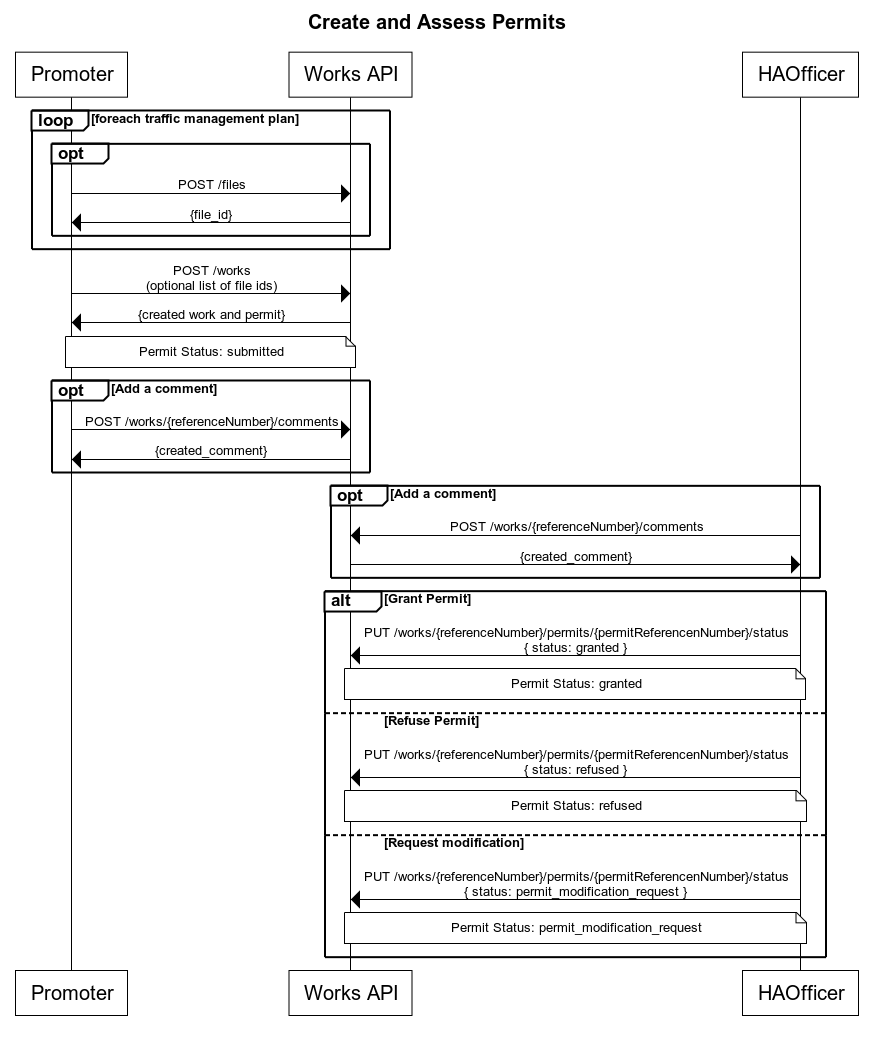
Create a work record (Planner):
POST /worksInitially a promoter will create a work, which will, in turn, create a permit application.
-
Approve the permit (Highway Authority):
PUT /works/{workReferenceNumber}/permits/{permitReferenceNumber}/status
Permit modification requests
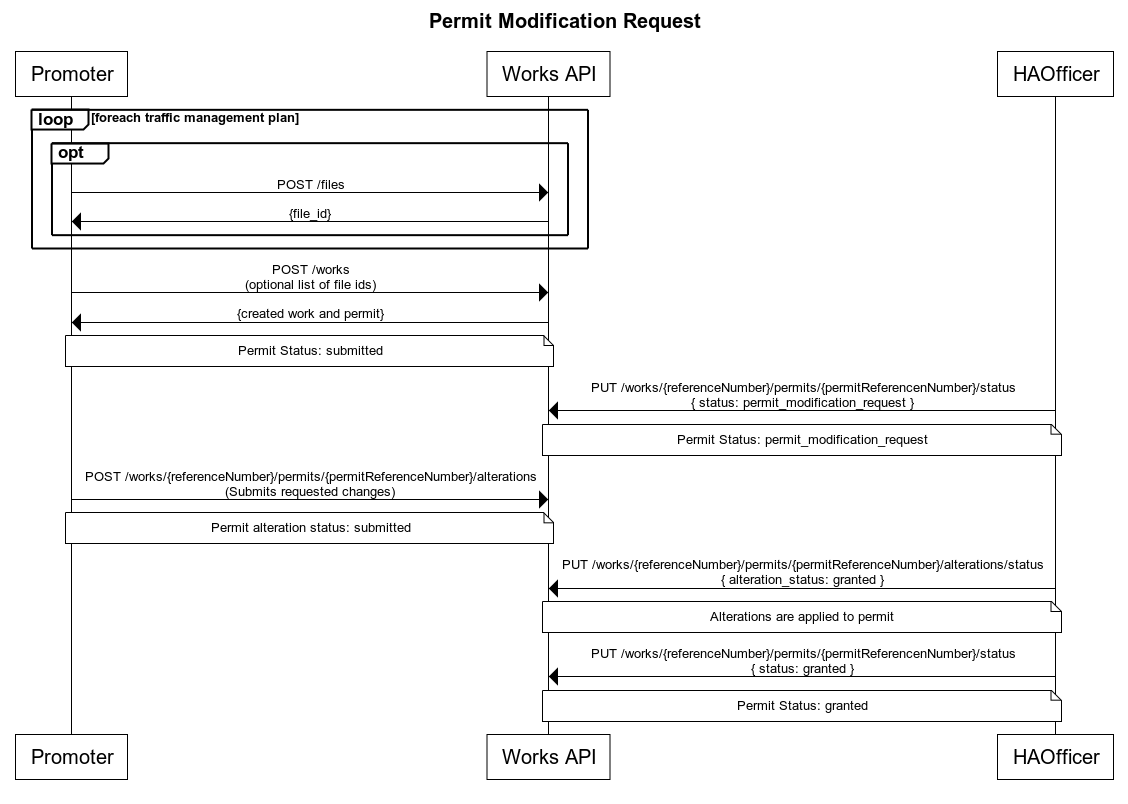
HA Officers will have the option to assess permit applications as a permit_modification_request. This means the work can not be started until the HA makes a final assessment, i.e. granted or refused. They can do this at any time, but the promoter will have the option to submit permit alterations in order to address the changes the HA has asked for.
-
Create a work record (Planner):
POST /worksInitially a promoter will create a work, which will, in turn, create a permit application.
-
Modification request (Highway Authority):
PUT /works/{workReferenceNumber}/permits/{permitReferenceNumber}/statusVia the assessment endpoint, the HA requests changes to the permit.
-
Create permit alteration (Promoter):
POST /works/{workReferenceNumber}/permits/{permitReferenceNumber}/alterationsPromoter submits requested changes via change request
-
Assess the alteration (Highway Authority):
PUT
/works/{workReferenceNumber}/permits/{permitReferenceNumber}/alterations/{permitAlterationReferenceNumber}/status
Once a permit alteration is submitted the Highway Authority can either grant or refuse it.
Once a permit alteration is granted by a Highway Authority the permit is updated with the altered values.
-
Approve or reject the permit (Highway Authority):
PUT /works/{workReferenceNumber}/permits/{permitReferenceNumber}/statusThe HA makes a final assessment decision on the permit
Inspections
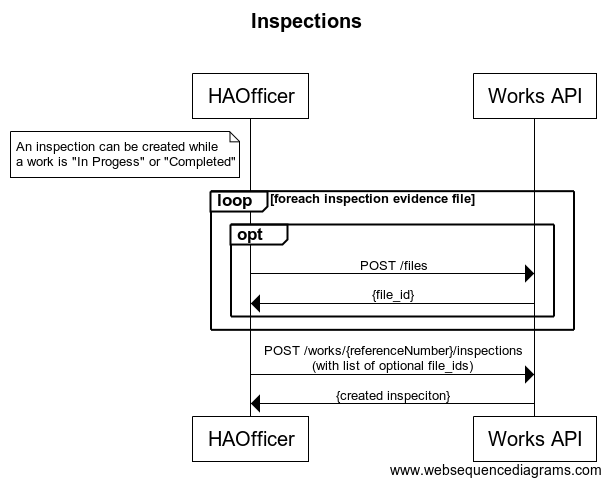
In order to create an inspection the following steps should be followed:
-
Create a work record (Planner):
POST /worksInitially a promoter will create a work, which will, in turn, create a permit application.
-
Start the work (Planner):
PUT /works/{workReferenceNumber}/start -
Upload supporting evidence (Highway Authority):
POST /filesIf supporting evidence is required for an inspection (for example, a photograph of a defect) one or more files can be associated with the inspection as part of the POST request. The file(s) must be uploaded first, the returned
file_idsubmitted in thefile_idsarray in the inspection request and theinspection_evidenceboolean set totrue. The maximum amount of files which can be linked to an inspection is 50. -
Create an inspection (Highway Authority):
POST /works/{workReferenceNumber}/inspectionsOnce a permit is in the "In Progress" or "Closed" state an inspection can be recorded against it. When recording a Failed inspection it is possible to create a reinspection which will act as a placeholder for a follow up inspection.
Once an inspection is recorded against a work any previously scheduled reinspections, for that work, will be removed.
Once an inspection is recorded against a work it cannot be updated.
Fixed Penalty Notices
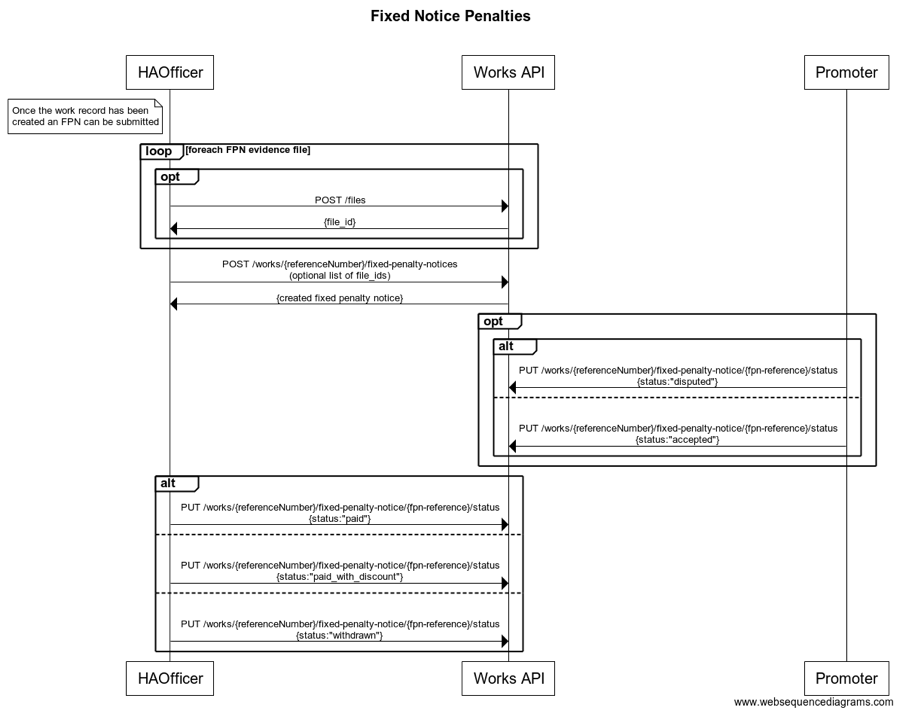
In order to create a fixed penalty notice the following steps should be followed:
-
Create a work record (Planner):
POST /worksInitially a promoter will create a work, which will, in turn, create a permit application.
-
Upload supporting evidence (Highway Authority):
POST /filesIf supporting evidence is required for a fixed penalty notice (for example, a photograph of a breach of conditions) one or more files can be associated with the inspection as part of the POST request. The file(s) must be uploaded first, the returned
file_idsubmitted in thefile_idsarray in the inspection request and thefpn_evidenceboolean set totrue. The maximum amount of files which can be linked to a fixed penalty notice is 50. -
Create a fixed penalty notice (Highway Authority):
POST /works/{workReferenceNumber}/fixed-penalty-noticesA fixed penalty notice can be created against a work as soon as it has been created.
-
Accept a fixed penalty notice (Planner):
PUT /works/{workReferenceNumber}/fixed-penalty-notices/{FpnReferenceNumber}/statusOptional Step: A promoter can mark the fixed penalty notice as accepted or, alternatively, they can pay it offline.
-
Dispute a fixed penalty notice (Planner):
PUT /works/{workReferenceNumber}/fixed-penalty-notices/{FpnReferenceNumber}/statusOptional Step: A promoter can dispute a fixed penalty notice. Once a promoter disputes a fixed penalty notice, they are able to retroactively mark it as accepted, if required.
-
Set fixed penalty notice outcome (Highway Authority):
PUT /works/{workReferenceNumber}/fixed-penalty-notices/{FpnReferenceNumber}/statusThe Highway Authority issuing the fixed penalty notice is able to record the resolution of the fixed penalty notice. Possible resolution states are: Paid, Paid with Discount or Withdrawn.
Sites and reinstatements
Reinstatements can be created as part of a non-notifiable work record or a planned work record. Reinstatement and sites have the following types:
- excavation
- bar_holes
- core_holes
- pole_testing
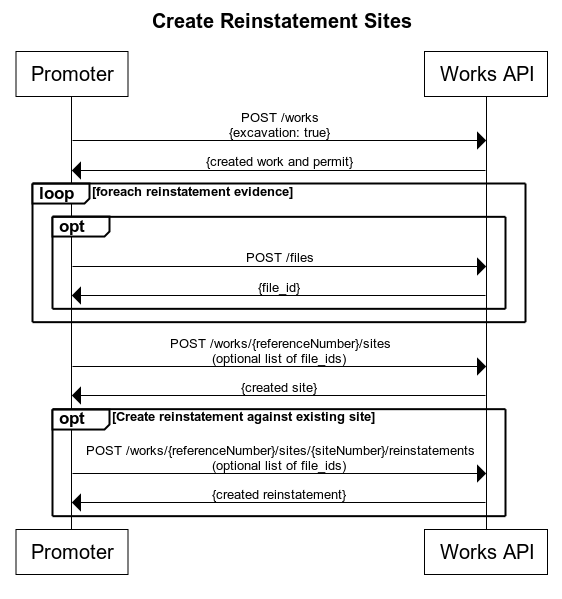
The type is only specified when creating a site, any reinstatements created an against existing site will inherit the type from the site they are created against. Excavation sites can only be created for work records which have an active permit which is in-progress or complete and where excavation is set to true in the permit application. A typical flow is as follows:
-
Create a work record (Planner):
POST /worksInitially a promoter will create a work, which will, in turn, create a permit application. Excavation will be true when promoter wishes to raise excavation sites
-
Start the work (Planner):
PUT /works/{workReferenceNumber}/start -
Create a site (Planner):
POST /works/{workReferenceNumber}/sitesOnce a permit is in the "In Progress" or "Closed" state a site can be created.
Once a site is recorded against a work a reinstatement of the same type can be optionally added to the site using
POST /works/{workReferenceNumber}/sites/{siteNumber}/reinstatementsOnce a site/reinstatement is recorded against a work it cannot be updated.
Permit alterations
Promoter change request
In order to create a promoter change request the following steps should be followed:
-
Create a work record (Planner):
POST /worksInitially a promoter will create a work, which will, in turn, create a permit application.
-
Approve the permit (Highway Authority):
PUT /works/{workReferenceNumber}/permits/{permitReferenceNumber}/status -
Request a change (Planner):
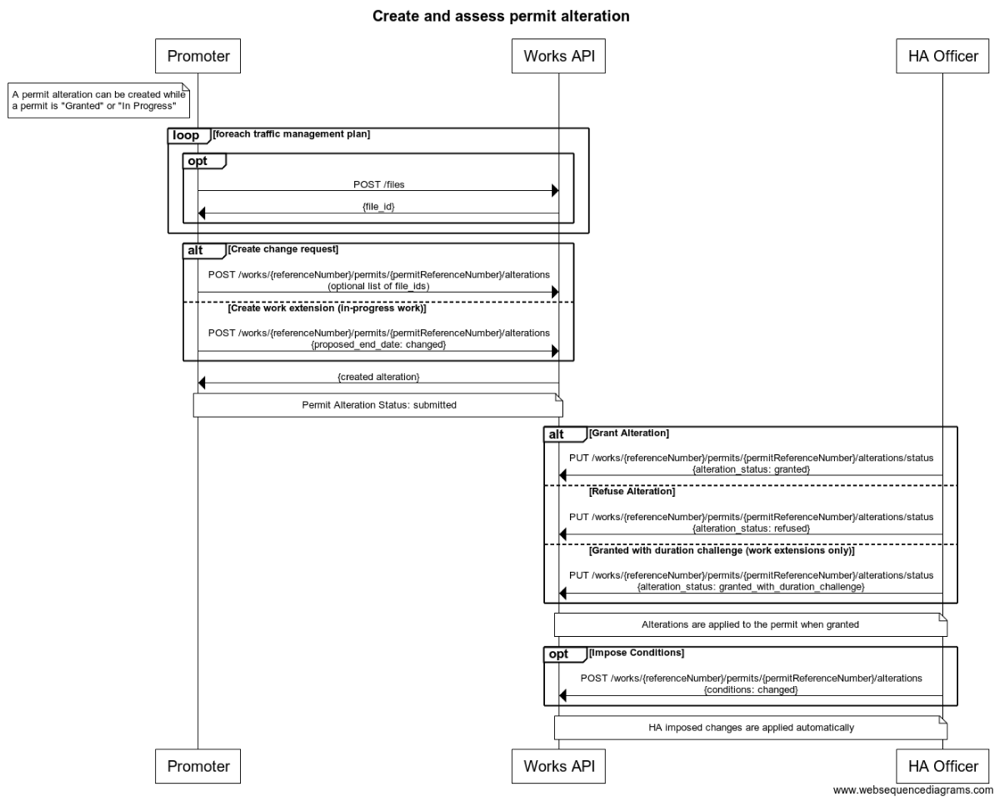
POST /works/{workReferenceNumber}/permits/{permitReferenceNumber}/alterationsPromoter should submit all fields in the original permit with the changes they require included.
-
Assess the alteration (Highway Authority):
PUT
/works/{workReferenceNumber}/permits/{permitReferenceNumber}/alterations/{permitAlterationReferenceNumber}/status
Once a permit alteration is submitted the Highway Authority can either grant or refuse it.
Once a permit alteration is granted by a Highway Authority the permit is updated with the altered values.
Promoter work extension
In order to create a work extension the following steps should be followed:
-
Create a work record (Planner):
POST /worksInitially a promoter will create a work, which will, in turn, create a permit application.
-
Approve the permit (Highway Authority):
PUT /works/{workReferenceNumber}/permits/{permitReferenceNumber}/status -
Start the work (Planner):
PUT /works/{workReferenceNumber}/start -
Request a change (Planner):
POST /works/{workReferenceNumber}/permits/{permitReferenceNumber}/alterationsPromoter should submit all fields in the original permit containing a change to the proposed_stop_date.
-
Assess the alteration (Highway Authority):
PUT /works/{workReferenceNumber}/permits/{permitReferenceNumber}/alterations/{permitAlterationReferenceNumber}/statusOnce a permit alteration is submitted the Highway Authority can either grant, grant with duration challenge or refuse it. If the Highway Authority grants with duration challenge they also provide an alternative end_date for the work to be complete.
Once a permit alteration is granted by a Highway Authority the permit is updated with the altered values.
Highway Authority imposed changed
In order to create a Highway Authority imposed change the following steps should be followed:
-
Create a work record (Planner):
POST /worksInitially a promoter will create a work, which will, in turn, create a permit application.
-
Approve the permit (Highway Authority):
PUT /works/{workReferenceNumber}/permits/{permitReferenceNumber}/status -
Impose a change (Highway Authority):
POST /works/{workReferenceNumber}/permits/{permitReferenceNumber}/alterations/imposeHighway Authority can impose changes to the conditions only.
Once an imposed change is submitted by a Highway Authority the permit is updated with the altered values. No assessment is required.
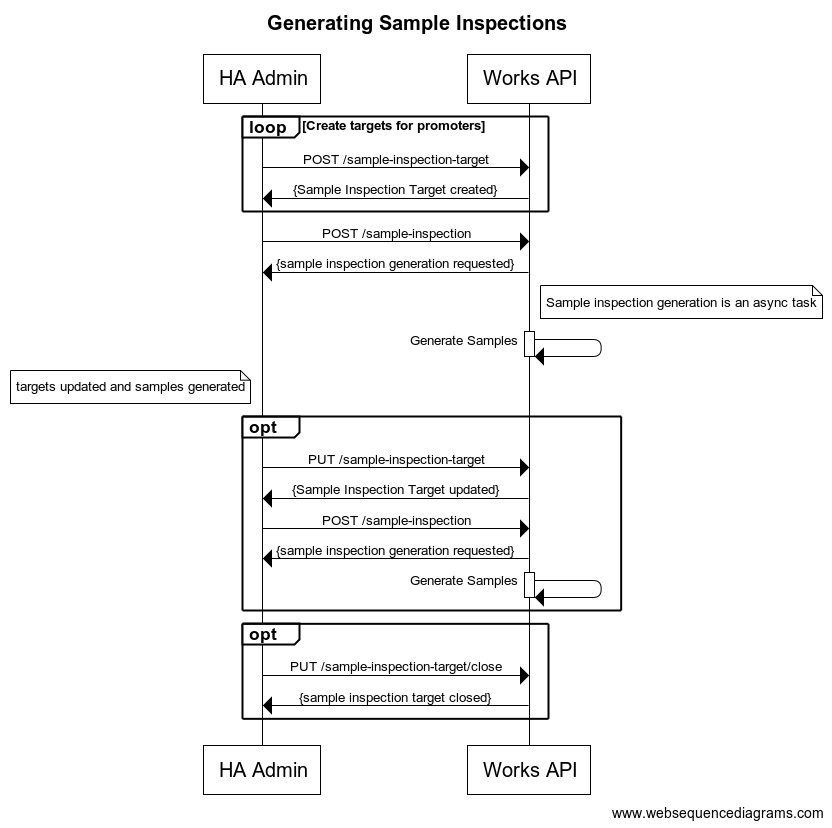
Generating Sample Inspections
In order to generate sample inspections the following steps should be followed:
-
Create sample inspection targets (Highway Authority Admin):
POST /sample-inspection-targetOnce targets are agreed with promoter a target should be created against that promoter in Street Manager. Only promoters with an active target are included in sampling.
-
Request Sample Generation (Highway Authority Admin):
POST /sample-inspectionsSamples are generated for each promoter with an active target up to the limits (caps) specified in the target.
-
Update sample target (Highway Authority Admin):
PUT /sample-inspection-targetAfter a target is raised, Highway Authority Admins have the option to update the agreed counts and the max number per category to generate
-
Closing a sample target (Highway Authority Admin):
PUT /sample-inspection-target/closeA Highway Authority may only have one active target per promoter. Targets may be closed to allow a fresh target to be created, for example at the end of a financial year.
Access and Permissions
As discussed in our authentication and authorisation section, all resource endpoints in the API, require a JWT to be passed in the 'token' header of the request. The JWT contains information about the currently authenticated user which is used for more granular level access control as detailed below:
Role Based Access
The following roles can be associated with users:
- Admin
- Planner
- HighwayAuthority
- Contractor
- API
- UI
- DataExport
- StreetWorksAdmin
A user can have multiple roles, but some roles are mutually exclusive in that you may only have one role in the following groups:
- Planner, HighwayAuthority, Contractor, DataExport
- UI, API
- Admin, API
So for example it is not possible for Admins to be API users at the same time, or to hold both UI and API access simultaneously.
Role Based Access - Contractor
Many endpoints in our API support the ability to provide a swaCode query param. This is intended for Contractor users to assume the Planner role on behalf of another organisation. When assuming the role of a Planner for another organisation there is validation in place to ensure that the contractor’s organisation is permitted to work for the target organisation. This is controlled by the target organisation’s admin, as they can establish contracting relationships via the front-end application. Please note that currently Street Manager does not support contractors assuming a HighwayAuthority role. This is currently in the road map for future release (post April 2020).
If a valid contract exists for the target organisation then a contractor is bound to the same planner access controls detailed below as regular planners working for that organisation directly.
Role Based Access - Planner
Endpoints which support the Planner role on the API are protected by workstream access. This is admin functionality on the front-end which allows an admin to assign users or contractors working for them the following levels of access for a particular workstream:
- full-write: User is permitted to perform write and read actions on work records and related resources associated with that workstream.
- read-only: User is permitted to perform read-only actions on work records and related resources associated with that workstream.
- no-access: User is not permitted to perform write or read actions on work records and related resources associated with that workstream
The workstream restrictions set by administrators are applied to both UI and API user accounts. no-access users are still permitted to use the GeoJSON & Street Lookup API as well as view specific details of entities returned from those API responses, for example permit details can still be accessed via the work-api but the wider work-record details cannot.
The Reporting and Data Export APIs will automatically filter data in endpoint responses based upon the users allocated workstreams.
Role Based Access - HighwayAuthority
HighwayAuthority users are not restricted to work records based upon workstreams or contract associations. Instead they are only allowed to perform write actions on resources associated with their own organisation. For example they can only assess permits for work records which have been assigned to their own organisation. HighwayAuthority users can instead filter resources using Geographical Areas. For more information see the resource guide
Role Based Access - StreetWorksAdmin
The StreetWorksAdmin role cannot be used by itself, it must be paired with either Admin, Planner, Contractor or Highway Authority. Users who are have been granted the StreetWorksAdmin role are able to access additional sensitive information, for example financial information relating to Section 74s.
The StreetWorksAdmin role is not the same as the Admin role and does not provide access to functionality that is currently exclusive to the Admin role.
While the Admin role on it’s own will not have access to the additional sensitive information provided by the StreetWorksAdmin role via the UI they will be able to access the data via the ‘Download all my data’ functionality.
Default Workstream
A default workstream with the prefix “000” exists for every organisation. This is intended as a holding-place for work records without permits, for example historic works and section 81s are created against the default workstream for the associated promoter’s organisation. When the first permit is created for a work record the promoter will be able to provide the correct workstream for which it should be associated. The default workstream should NOT be provided explicitly in requests when creating permits, this will result in a bad request error. Instead, a workstream for which the user has full-write access to should be provided.
Resource Guides
For detailed information about the API endpoints and functionality, see the dedicated resource guides